





The Task Scheduler application is in-built in Windows operating systems and allows to automate various maintenance tasks, but also to automate our own tasks in an easy and straightforward way.
Spoiler: Windows makes this super easy for us!
The focus of this blog post is to learn how to run a Python script at a specific day and time schedule. Besides this functionality you can also:
- start all kinds of applications
- run commands
- trigger tasks when a specific event occurs.
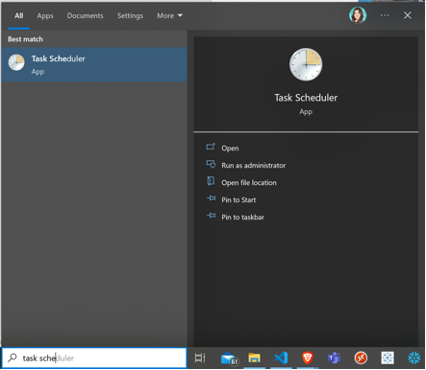
But let’s begin from the start: you can use the search bar to open the Task Scheduler application.
But let’s begin from the start: you can use the search bar to open the Task Scheduler application.
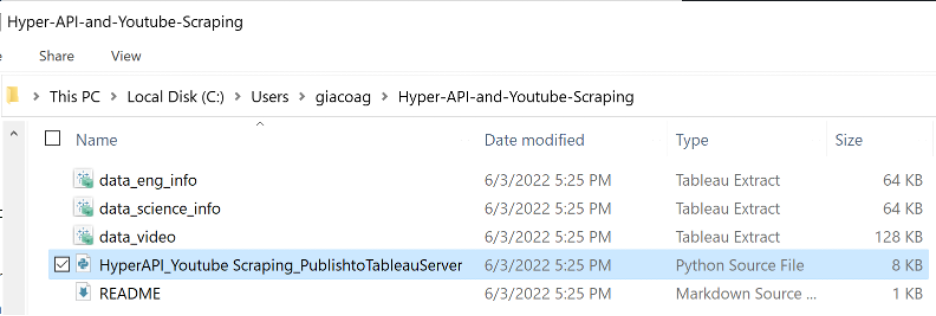
Once you have identified the Python script (.py file) that you want to automate, we will need to create our task schedule based on the file location. For the sake of this post, I will use the script that I wrote for this blog post, which is also a project I published on my Github and that I cloned locally:
The next step is to create a Batch file using a simple text editor like Notepad.
We will need a simple file with the following structure:
"Path of your python.exe app" "Path of your Python script name.py"pauseIn my case this will be:
"C:\Users\giacoag\Anaconda3\python.exe" "C:\Users\giacoag\Hyper-API-and-Youtube-Scraping\HyperAPI_Youtube Scraping_PublishtoTableauServer.py"pause
Save this file with .bat extension, which will automatically create a local Windows Batch file:

The last step is to define our custom schedule. Let’s go back to our Task Scheduler App and click on ‘Schedule Basic Task’, give the task a Name and an optional Description.

When clicking on Next, you will be prompt to select your custom schedule. Do you want the script to run daily, weekly, monthly, whenever the computer starts, or another option?
You can easily set a start date and time. In the next step, under Action select ‘Start a program’ and locate your previously created .bat file.

Click finish at the next step and you’re all done! Your Python script will now run at the selected days/times without the need of a cloud platform like Google Cloud or Airflow.
Free, quick and effective.